
We have upgraded our printing system to make it easier than ever to connect to printers around the school! You no longer need to hunt down printer drivers or IP addresses. Just follow these simple steps using our new Print Deploy tool.
Step 1: Locate the Print Deploy Icon
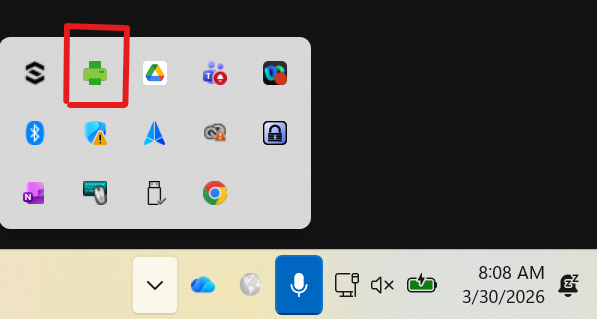
First, find the green PaperCut Print Deploy icon on your computer:
- Windows Users: Look in the bottom-right corner of your screen, near the clock. (You may need to click the small upward arrow ^ to show hidden icons).
- Mac Users: Look in the top-right corner of your screen, in the menu bar near the Wi-Fi icon and clock.
Step 2: Open "My Printers"
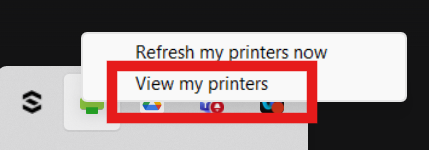
- Click the green Print Deploy icon.
- Select View my printers from the pop-up menu. This will open the Print Deploy window.
Step 3: Sign In (If Prompted)
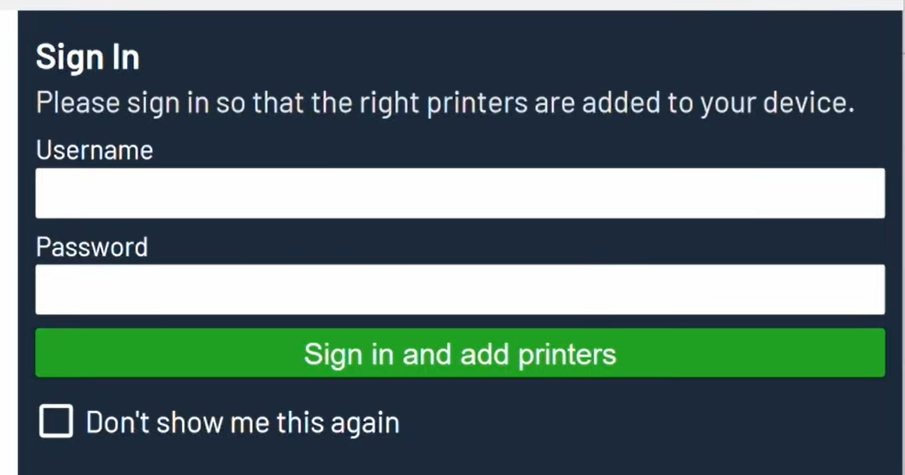
- If this is your first time opening the app, you may be asked to sign in.
- Enter your username and password (the same one you use for your email/computer) and click Sign in.
Step 4: Find and Install Your Printer
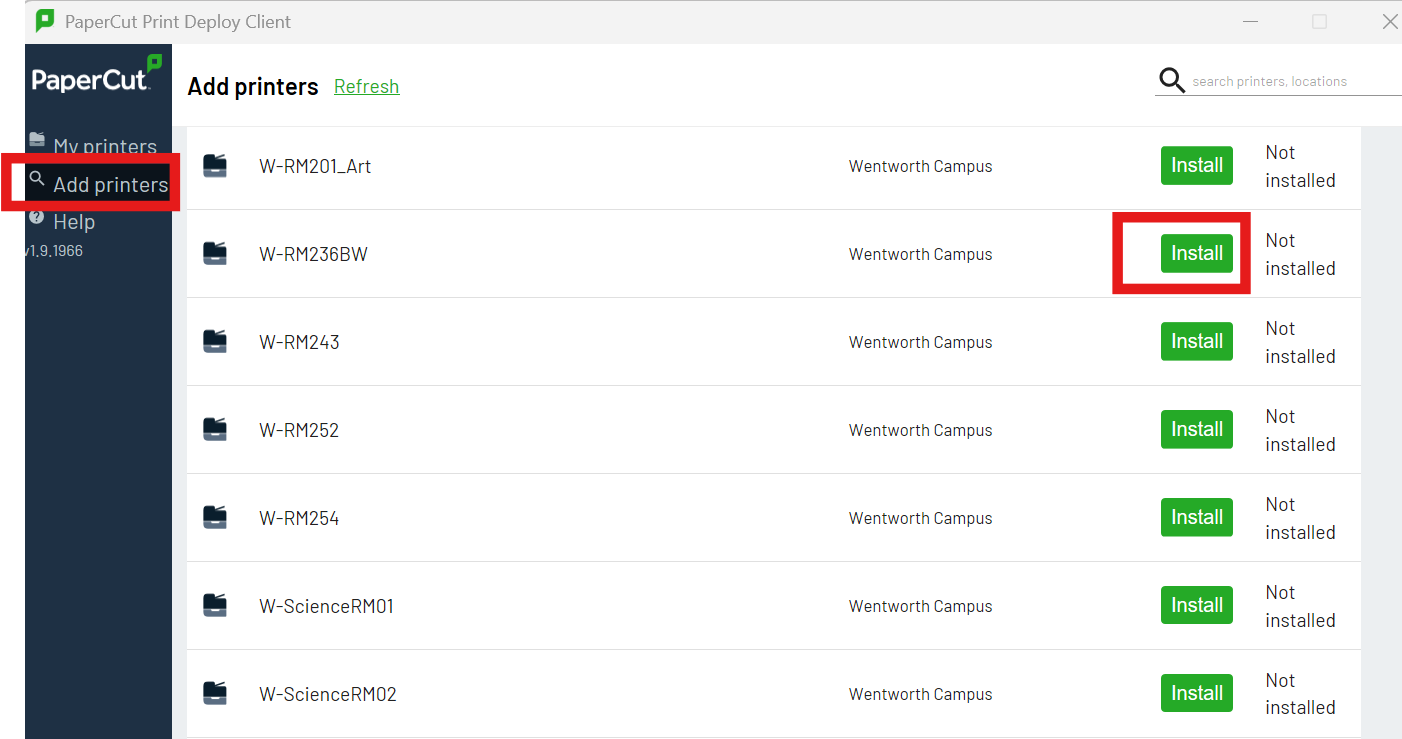
- On the left side of the Print Deploy window, click on Add printers.
- You will see a list of available printers available to install.
- Locate the printer you want to use.
- Click the green Install button next to the printer's name.
Step 5: You're Ready to Print!
- The button will change to say Installed and will turn gray.
- That’s it! You can now close the Print Deploy window. The printer will automatically show up in your standard print menu the next time you go to print a document.
Need Help? If you don't see the green Print Deploy icon, or if you run into any issues signing in, please reach out to IT by emailing computerservices@collingwood.org