Connecting your Chromebook to a projector, monitor, or TV is simple. Follow these steps to get connected and adjust your display settings.
Step 1: Connect the Cable
- Locate the HDMI port on the side of your Chromebook.
- Note: If your Chromebook does not have a standard HDMI port, you may need a USB-C to HDMI adapter.
- Plug one end of the HDMI cable into the Chromebook.
- Depending on your location, plug the other end into the wall plate, TV, projector.
- Make sure the display is set to the correct HDMI input
Step 2: Adjust Display Settings
Once connected, your Chromebook may automatically mirror your screen. If you want to change how it looks (e.g., extend the desktop or stop mirroring):
- Click the clock area in the bottom-right corner of your screen.
- Click the Settings gear icon ⚙️ to open Settings.
- In the left sidebar (or under the "Device" section), click Device > Displays.
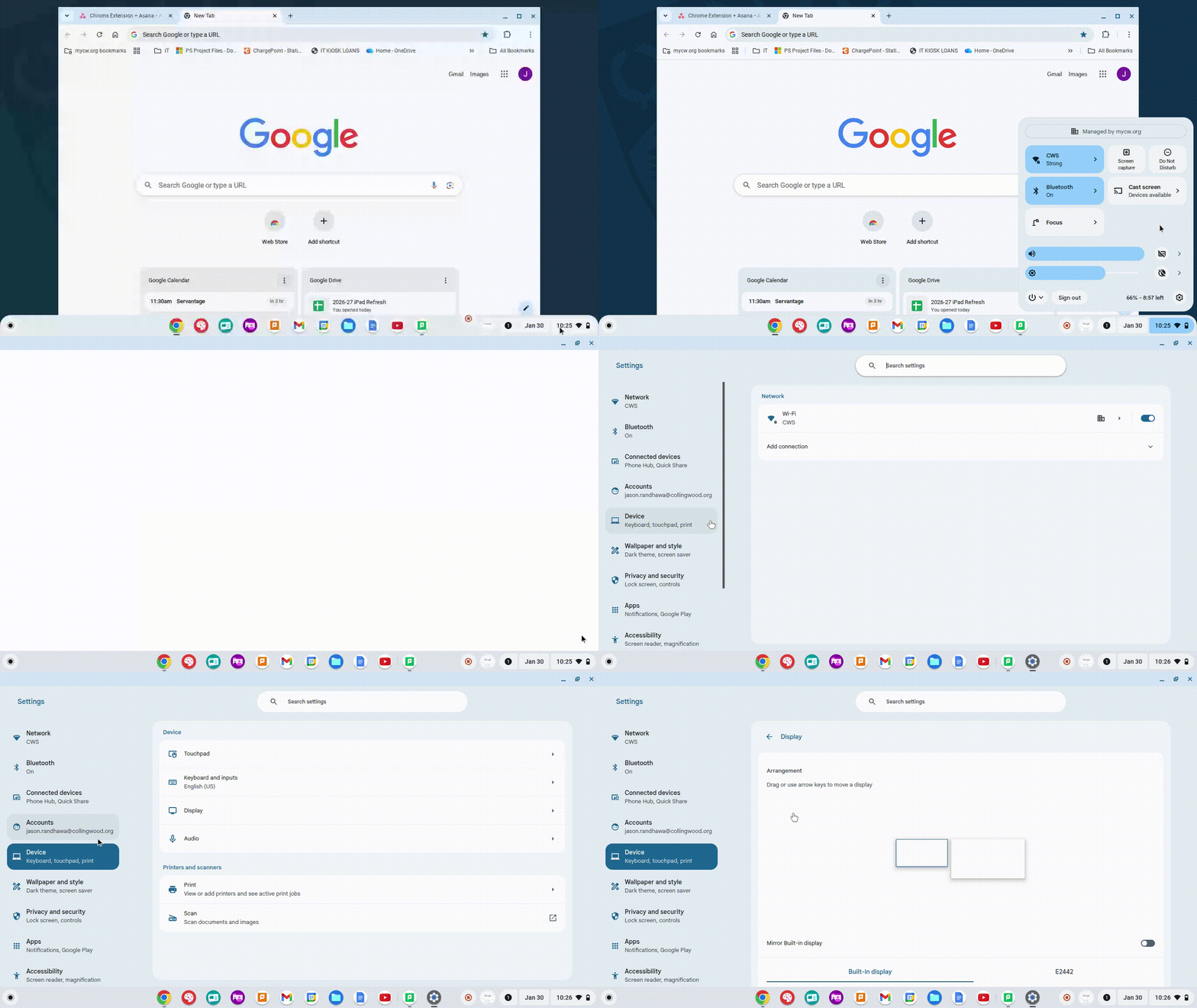
Step 3: Choose Your Mode: Mirror vs. Extend
Inside the Displays menu, you can choose how you want the screens to behave:
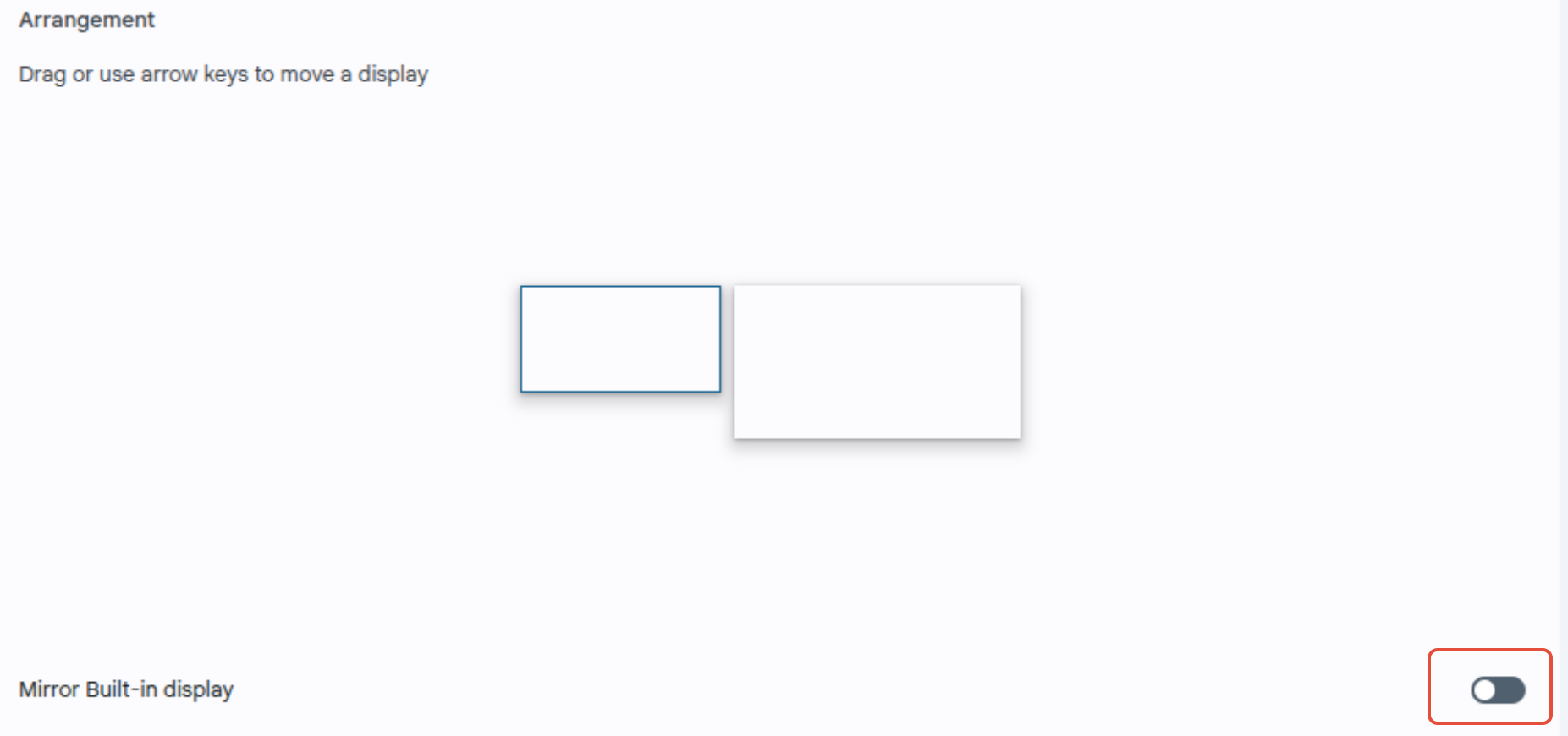
- Mirror Display (Duplicate):
- Check the box for Mirror Built-in Display.
- Best for: Presentations or showing exactly what is on your screen to others.
- Extend Desktop (Separate Screens):
- Uncheck the box for "Mirror Built-in Display."
- You can now drag windows across from your Chromebook screen to the external monitor.
- Best for: Multitasking (e.g., having a document on one screen and research on the other).
Step 4: Arrange Your Screens
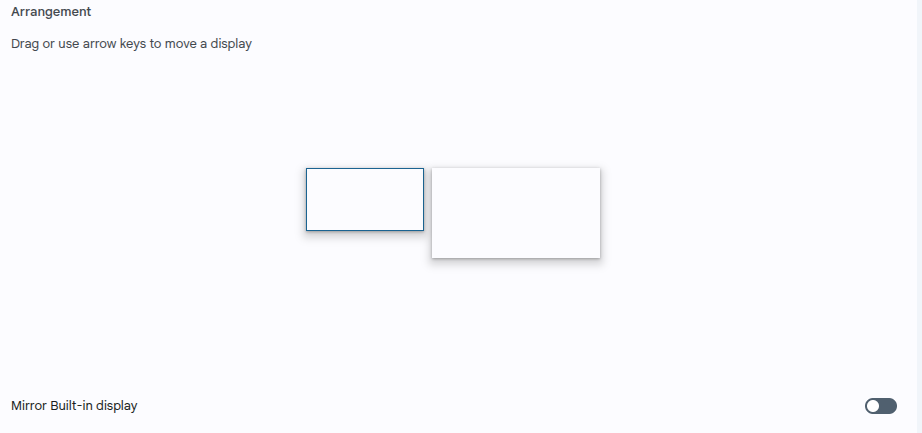
If you are using Extend Desktop mode, ensure the mouse moves correctly between screens:
- In the Displays menu, you will see two rectangles representing your screens.
- Click and drag the rectangles to match their real-life arrangement.
- Example: If the external monitor is sitting to the left of your Chromebook, drag the external monitor rectangle to the left side in the settings.
Step 5: Fix Audio (If Needed)
If you connected to a TV or monitor with speakers but sound is still coming from the Chromebook:
- Click the clock area in the bottom right.
- Click the arrow icon next to the volume slider.
- Under Output, select the external device (e.g., "HDMI" or the brand name of your TV).