Follow these steps to print documents to the M-Copier or W-Copier using your Chromebook.
- Step 1: Initiate the Print Job
- Step 2: Signing into PaperCut Mobility Print
- Step 3: Select the Mobility Print Printer
- Step 4: Finalize and Print
- Step 5: Collect Your Print Job
Step 1: Initiate the Print Job
- Open the document or page you wish to print.
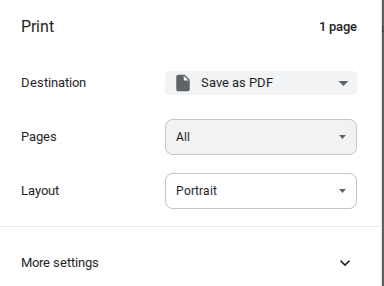
- Press Ctrl + P on your keyboard (or select Print from the browser's menu).
- Look at the Destination field. If it says "Save as PDF" or displays the wrong printer, you need to change it.
- Click the dropdown menu next to Destination. If you see M-Copier (Morven) or W-Copier (Wentworth) as an option, select it. Otherwise, select the See More option.
Step 2: Signing into PaperCut Mobility Print
- Note: You may only need to do this once, or periodically if your password changes.
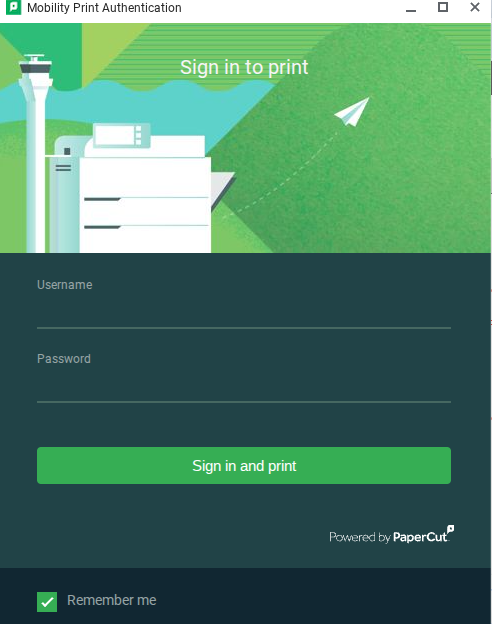
- A "Sign in to print" pop-up window will appear.
- Enter your organization Email and Password.
- (Optional) Check the Remember me box to avoid signing in every time you print.
- Click the green Sign in and print button.
Step 3: Select the Mobility Print Printer
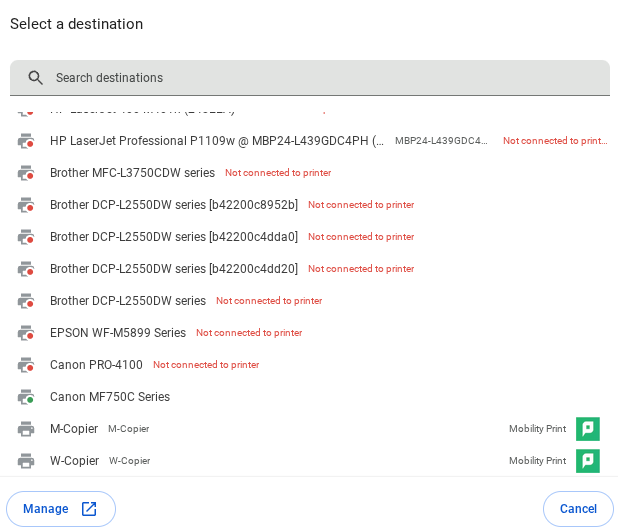
- In the Select a destination window, look for printers that have the green Mobility Print icon (a white 'P' on a green square) on the right side.
- Select either M-Copier or W-Copier from the list.
Step 4: Finalize and Print
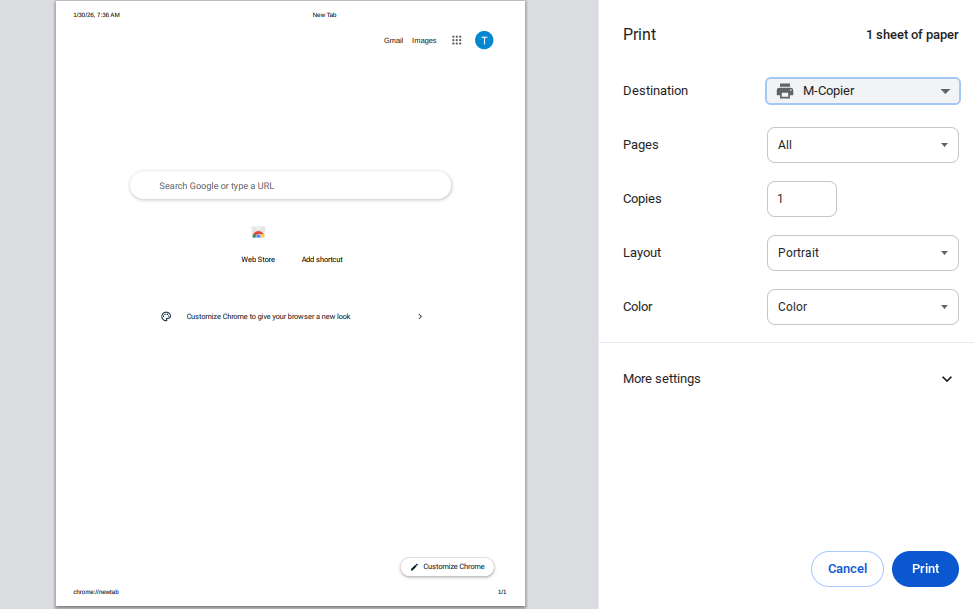
- You will be returned to the main print preview screen.
- Confirm that Destination is now set to your chosen printer (e.g., M-Copier).
- Adjust your settings (Copies, Color vs. Black & White, etc.) as needed.
- Click the blue Print button to send your document.
Step 5: Collect Your Print Job
- If printing to a regular printer, your job should be released automatically
- If printing to a printer that requires authentication to release jobs:
- Sign into the printer with your FOB, PIN, or your email address and password
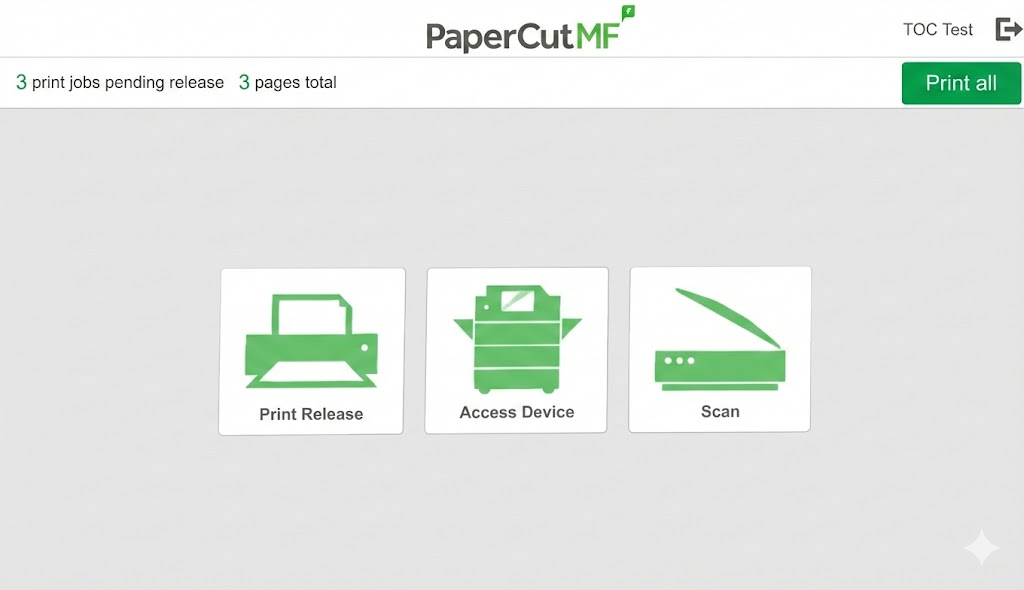
- Once signed in, click Print All to release all print jobs or select the Print Release button to select specific jobs