This guide shows the Loaner module workflow in myCW.
TABLE OF CONTENTS
Schedule or Loan an Item
Navigate to Admin > Schedule Loans to access the Search Settings page. Locate the equipment by searching via category or keyword across the full myCW hardware inventory.
To streamline this process, designate specific items as Lendable; this allows you to filter specifically for loanable items in future searches. You may schedule an item for multiple users across different dates; however, the system will automatically alert you if a scheduling conflict occurs.
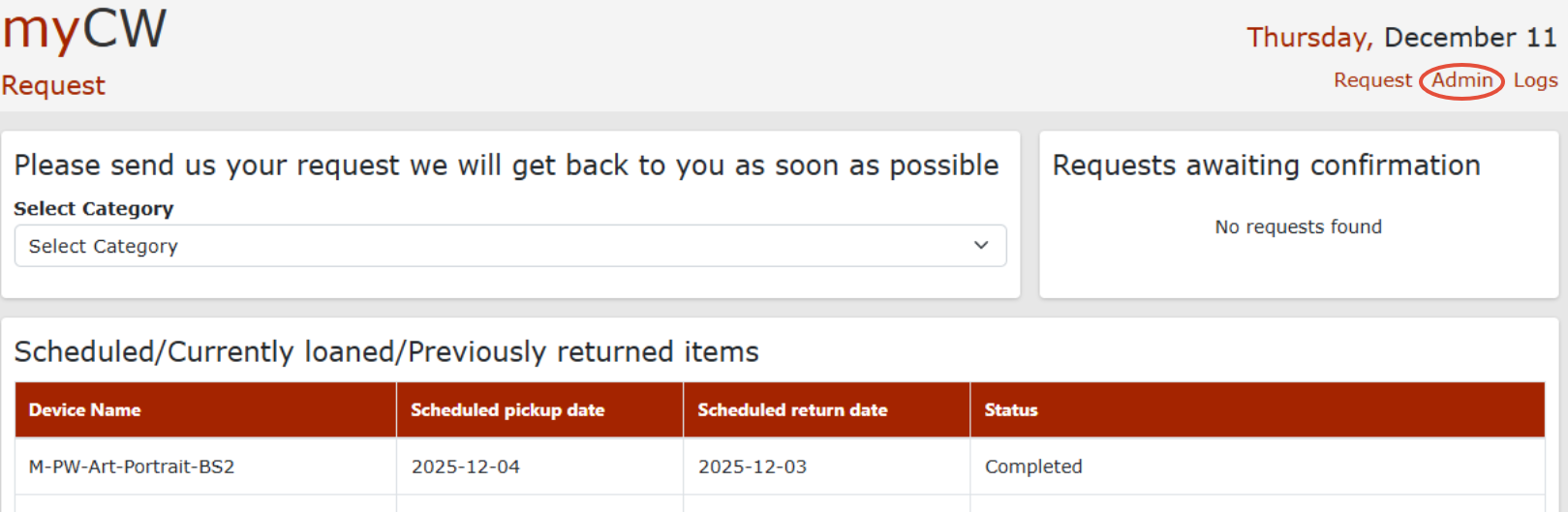
Step 1: Click on Admin link
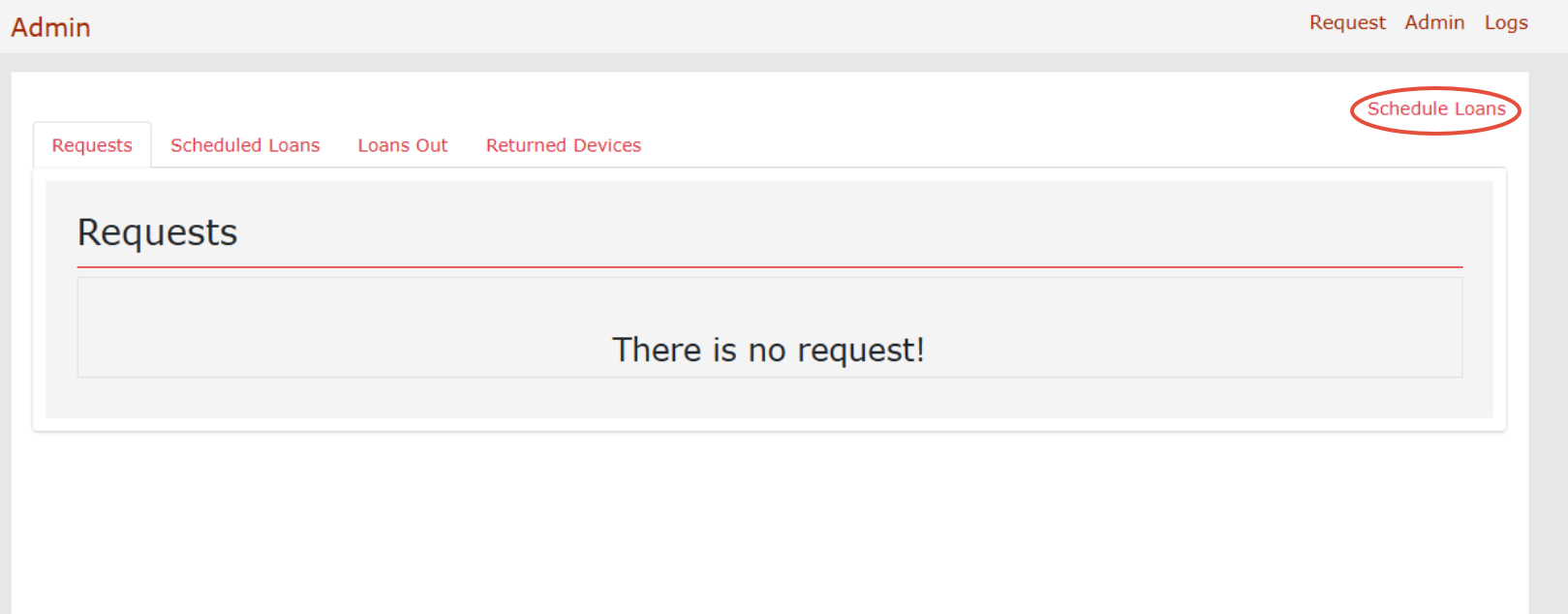
Step 2: Click Schedule Loans link
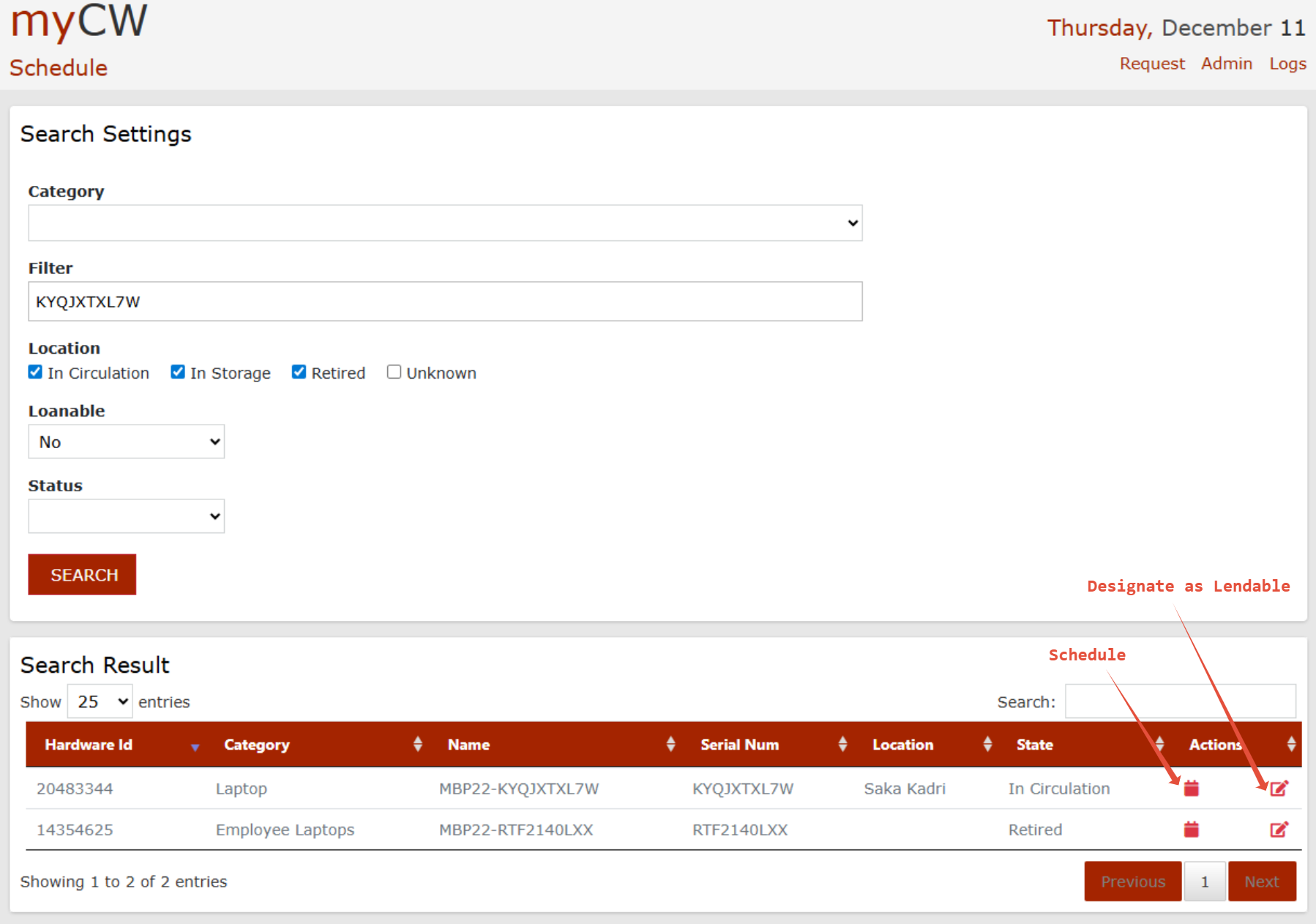
Step 3:
Use this search settings to locate items in our inventory database. Once found, you can click the Schedule button or designate the device as a lendable item.
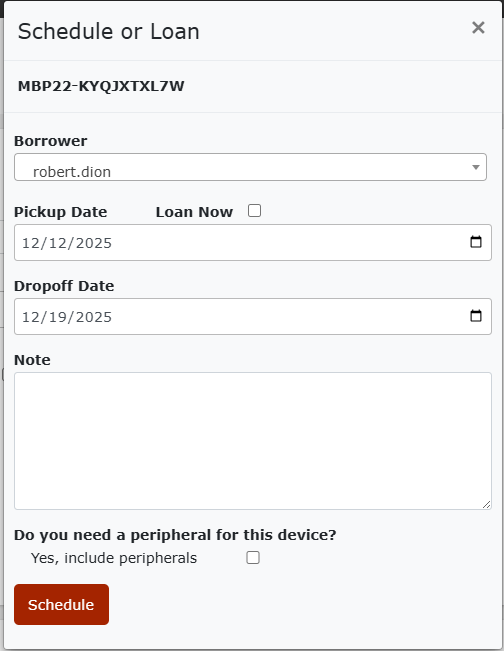
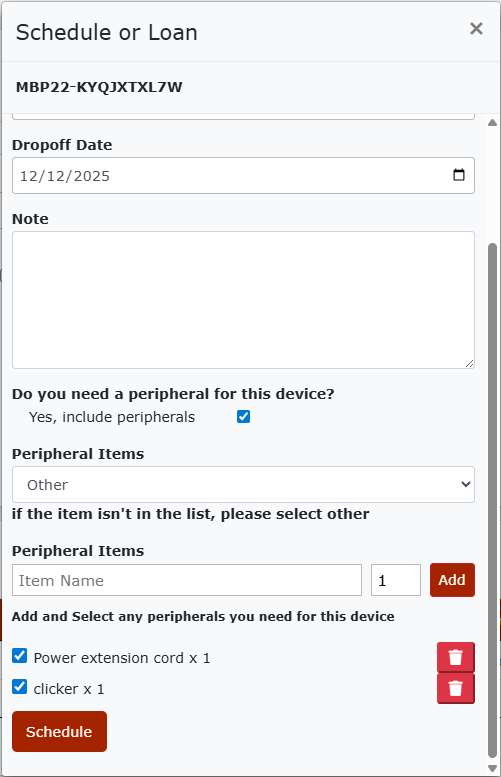
Step 4: In the Schedule dialog box, you can add necessary peripherals (e.g., chargers, HDMI cables) directly to the primary device.
 |  |
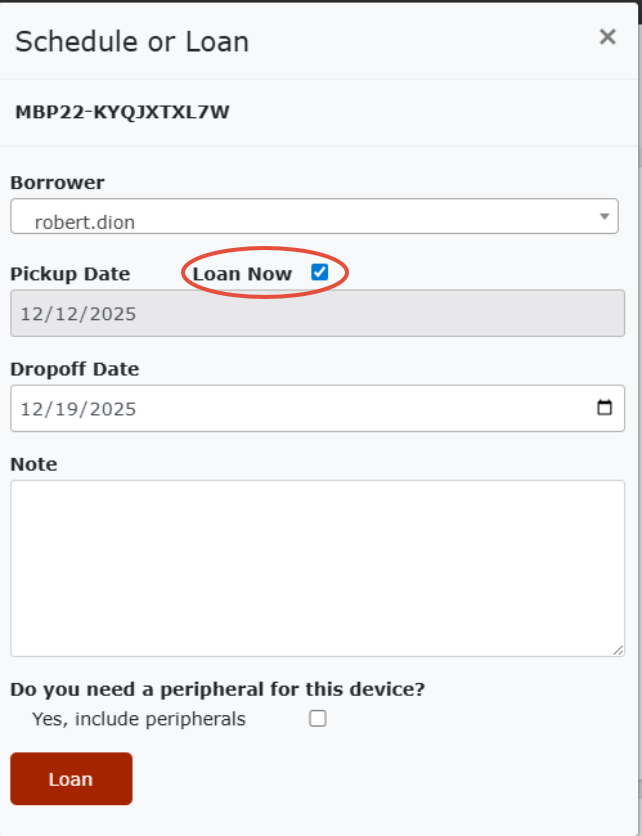
Step 5: You can also loan devices directly to users via the Schedule dialog box by selecting the Loan Now checkbox.
Manage Schedules, Loans, and Requests
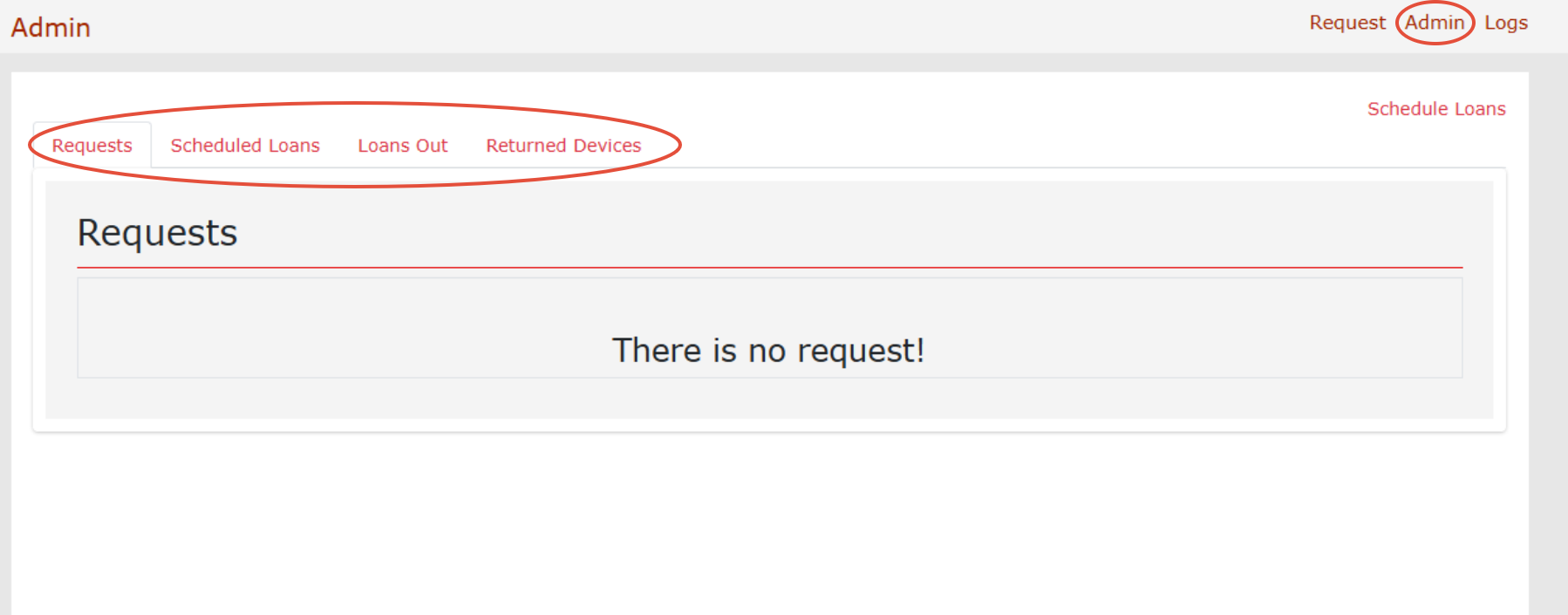
Manage all schedules and loans via the Admin link. Use the dedicated tabs—Requests, Scheduled Loans, Loans Out, and Returned Devices—to track and manage items through every stage of the loaner lifecycle.
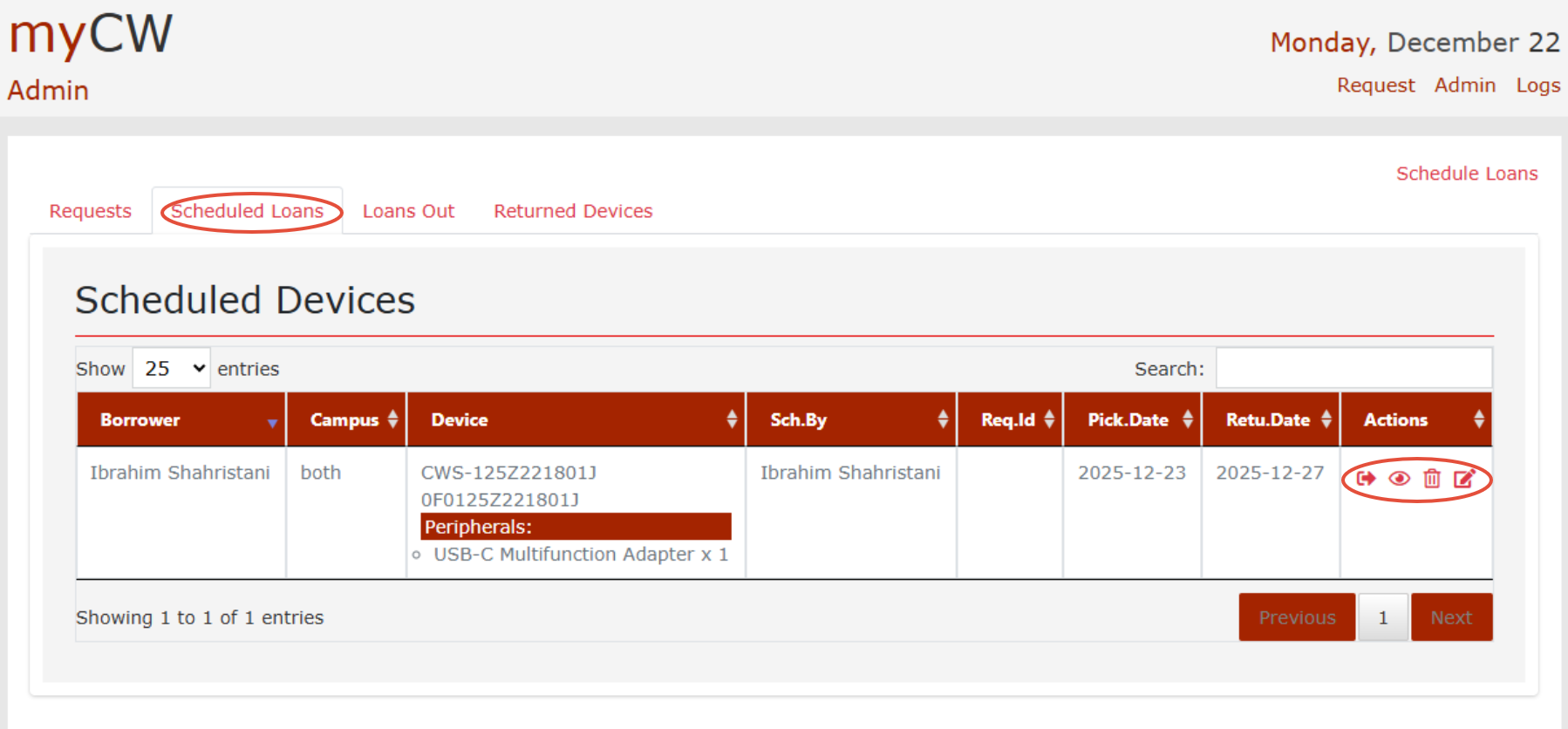
Scheduled tab
In the Scheduled Loans tab, you can manage schedules. Here, you can:
Process Loans: Loan item or add required peripherals to the Item.
Modify/Cancel: Use the Edit button to update pickup/drop-off date or the Delete button to cancel the schedule.
Loans Out: The system prevents double-loans out; an item must be marked as Returned before it can be loaned to another user.
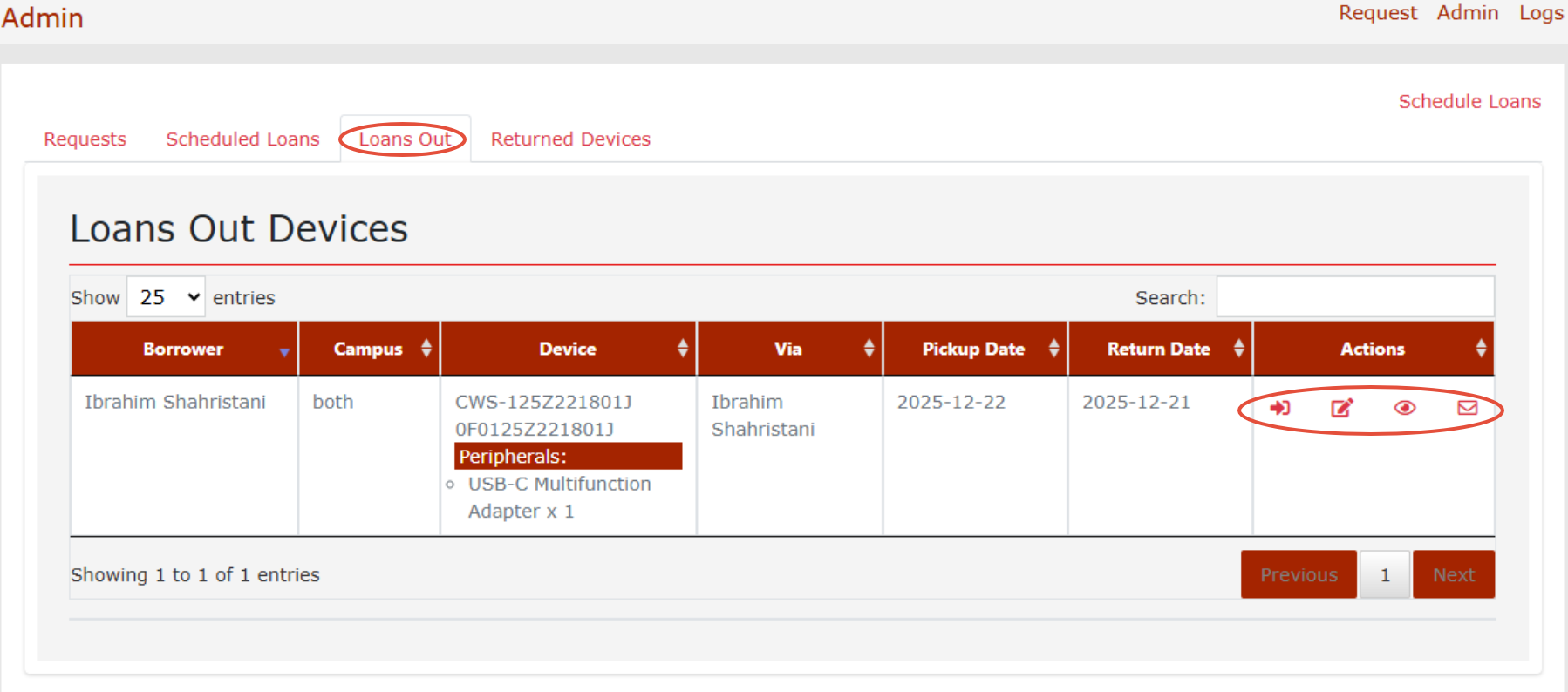
Loans Out tab
The Loans Out tab displays all active loans and their associated peripherals. From this screen, you can:
Extend Loans: Update the drop-off date as needed.
Track Returns: If a peripheral is missing upon return, leave its checkbox unchecked to maintain inventory accuracy.
Manage overdue: If an item is overdue, an Email Icon will appear. Click this icon to send a return notification directly to the user.
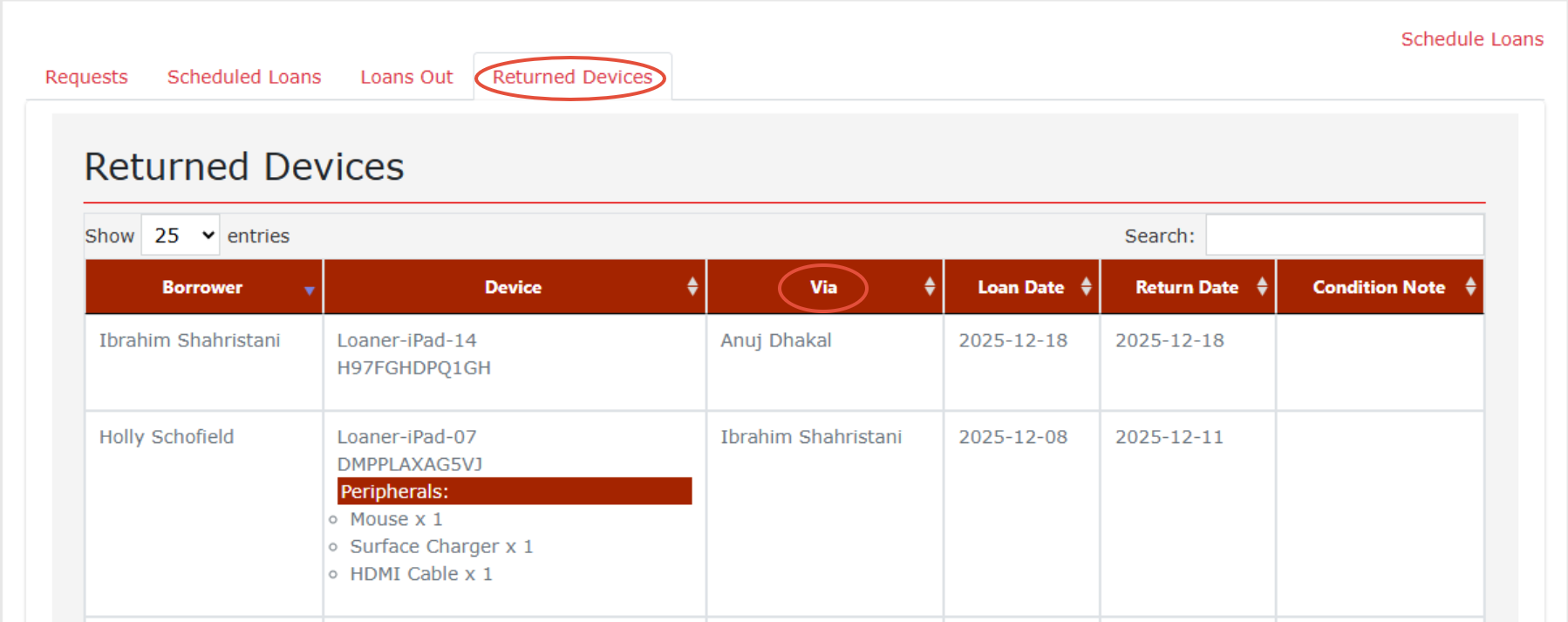
Returned Devices tab
The Returned Devices tab displays all completed loans, including peripherals. It identifies the staff member who received the equipment and provides the recorded condition notes for each device.
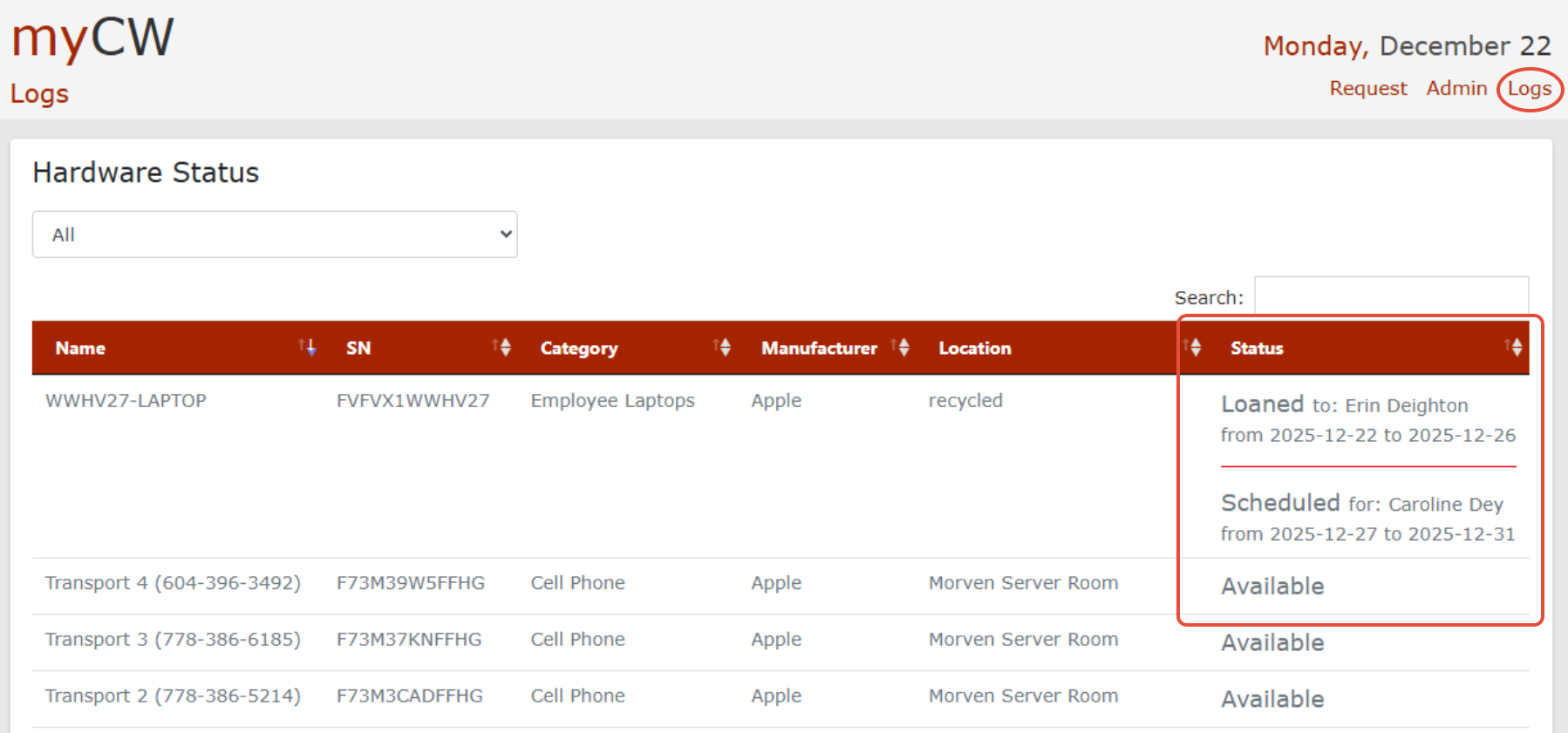
Logs
This page provides a snapshot of all loanable items. The Status column indicates whether an item is Loaned, Scheduled, or Available.
Request
Faculty and staff can submit loan requests directly to IT. Administrators can then approve, reject, or request more information via email. Users can track their request status—including Awaiting Confirmation, Scheduled, Loaned, or Returned—on the Requests page.
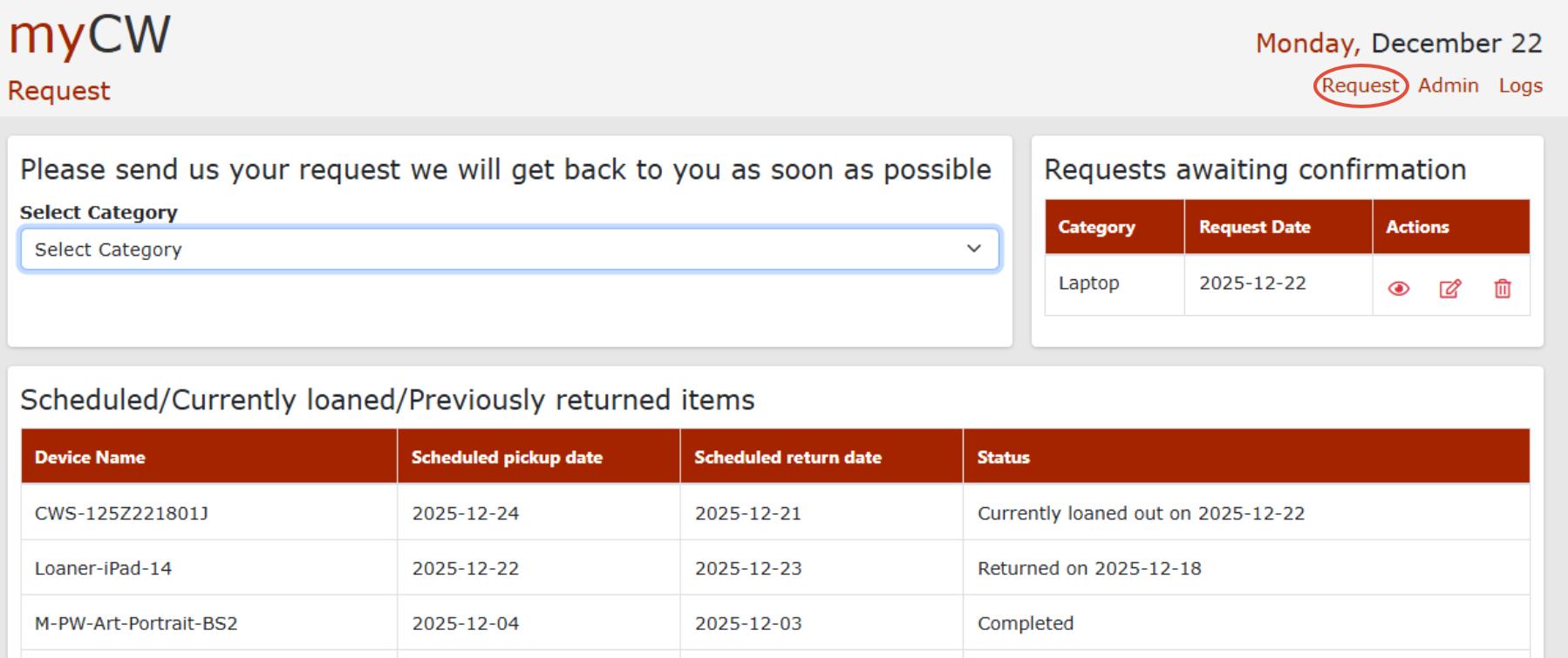
Request admin tab
Admin user can manage the request of the the user from the Request tab
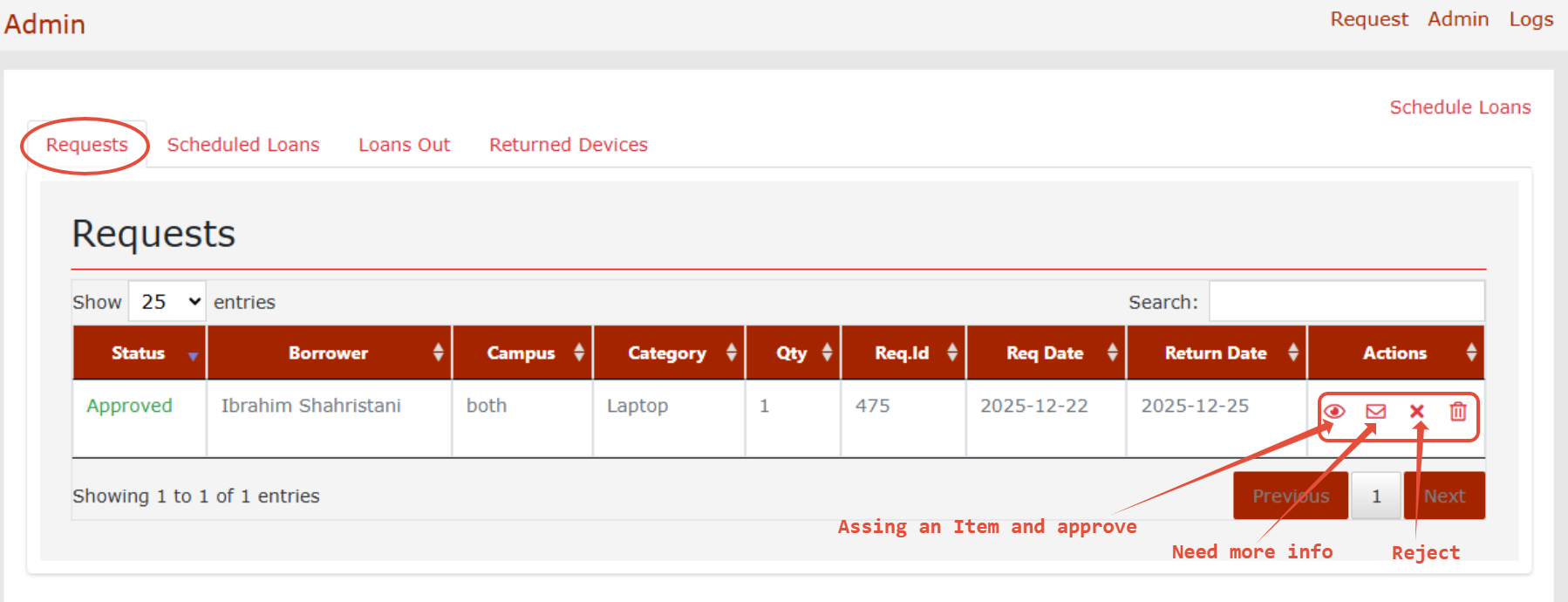
Assign Item to Request
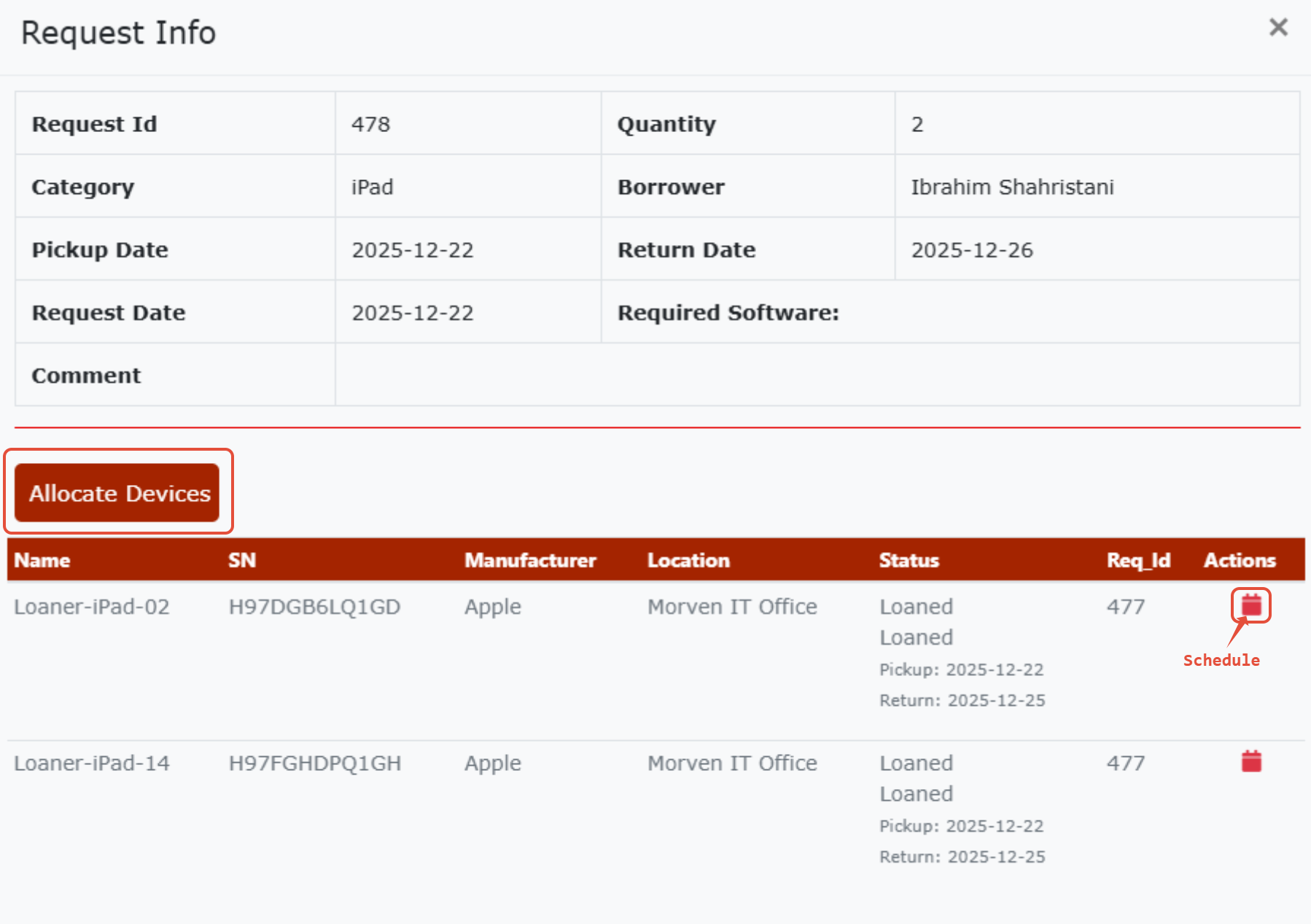
Administrators can fulfill requests by clicking View Request, then selecting Allocate Devices to view all available loanable categories for the request and can schedule an item for the request by clicking on schedule button.