
This post will show you how to Prepare for the first global large-scale certificate update to Secure Boot. The Microsoft certificates used in Secure Boot are the basis of trust for operating system security, and all will be expiring beginning June 2026. The way to automatically get timely updates to new certificates for supported Windows systems is to let Microsoft manage your Windows updates, which include Secure Boot. A close collaboration with original equipment manufacturers (OEMs) who provide Secure Boot firmware updates is also essential.
Reference websites : Please read first.
HP Commercial PCs - Prepare for new Windows Secure Boot certificates
Act now: Secure Boot certificates expire in June 2026
Remediation Steps :
1. Update the latest firmware/BIOS and appy the latest Windows security patch to the target computers. If the certificate is updated by the windows updates, skip the following steps.
2. Manual apply DB update: Installing the new certificate.
- Student Computers & HP Desktops or Staff_Faculty Laptop.
2.1 STEEM DESIGN - HP ProBook 440 14 inch G11 Notebook PC
ART - HP ZBook Firefly 14 inch G11 Mobile Workstation PC
STEEM Desktop - LENOVO ThinkStation P340
Staff_Faculty Desktop & Laptop
- HP Desktops - HP Pro SFF 400 G9 Desktop PC or some Surface pro or Lenovo Laptops
- Go to PDQ Inventory > Secure Boot Cert Update Status
- Go to Intune > Reports > Windows Autopatch > Windows quality updates > Reports > Secure Boot status
| Device name | OS version | Device model |
| CWS-PF3NEQ7K | 10.0.26100.7840 | 20W000T2US |
| L22-F3NEHJG | 10.0.22631.6199 | 20W000T2US |
| L22-PF3NED07 | 10.0.26200.7840 | 20W000T2US |
| L22-PF3NG01B | 10.0.26200.7840 | 20W000T2US |
| L22-PF3NG02E | 10.0.26100.7462 | 20W000T2US |
| L22-PF40FD3N | 10.0.26200.7840 | 20W00152US |
| L22-PF40CK0F | 10.0.22631.6649 | 20W00152US |
| L22-PF40L50C | 10.0.26200.7840 | 20W00152US |
| L23-PF4BMM3F | 10.0.26200.7781 | 21AH00BNUS |
| L23-PF4BMGCS | 10.0.26200.7840 | 21AH00BNUS |
| HP18-5CG8231SCM | 10.0.26200.7840 | HP EliteBook 840 G5 |
| HP18-5CG8231SR3 | 10.0.26200.7840 | HP EliteBook 840 G5 |
| HP18-5CG8231STN | 10.0.22631.6649 | HP EliteBook 840 G5 |
| HP18-5CG8231SZ1 | 10.0.22631.6491 | HP EliteBook 840 G5 |
| L19-MXL9234LF1 | 10.0.26200.7840 | HP EliteDesk 800 G4 SFF |
| CWS-MXL4244TY8 | 10.0.26200.7781 | HP Pro SFF 400 G9 Desktop PC |
| D24-MXL4243GY6 | 10.0.26200.7840 | HP Pro SFF 400 G9 Desktop PC |
| D24-MXL4244VGR | 10.0.26200.7840 | HP Pro SFF 400 G9 Desktop PC |
| D24-MXL4244VGV | 10.0.26200.7840 | HP Pro SFF 400 G9 Desktop PC |
| D24-MXL4244VH6 | 10.0.26200.7840 | HP Pro SFF 400 G9 Desktop PC |
| D24-MXL4244VHD | 10.0.26200.7840 | HP Pro SFF 400 G9 Desktop PC |
| D24-MXL4244VHM | 10.0.26200.7840 | HP Pro SFF 400 G9 Desktop PC |
| D24-XL4244VH3 | 10.0.26200.7840 | HP Pro SFF 400 G9 Desktop PC |
| CWS-0CJP221501J | 10.0.26200.7781 | Surface Pro 8 |
| CWS-0YQ6215001J | 10.0.26200.7781 | Surface Pro 8 |
| CWS-2AQK221901J | 10.0.26200.7781 | Surface Pro 8 |
| CWS-2AQY221901J | 10.0.26200.7840 | Surface Pro 8 |
| L22-PN221901J | 10.0.26200.7840 | Surface Pro 8 |
| L22-YL221901J | 10.0.26200.7840 | Surface Pro 8 |
2.2 Push the following Powershell.
Set-ItemProperty -Path “HKLM:\SYSTEM\CurrentControlSet\Control\SecureBoot” -Name "AvailableUpdates" -Value 0x40
Start-ScheduledTask -TaskName “\Microsoft\Windows\PI\Secure-Boot-Update”
2.3 Reboot the machine twice.
2.4 To Confirm the update is ready
[System.Text.Encoding]::ASCII.GetString((Get-SecureBootUEFI db).bytes) -match "Windows UEFI CA 2023"
If it is false, update isn't ready
 2.5 Push the following PowerShell to update the Boot Manager on the device.
reg add HKEY_LOCAL_MACHINE\SYSTEM\CurrentControlSet\Control\Secureboot /v AvailableUpdates /t REG_DWORD /d 0x100 /f
Start-ScheduledTask -TaskName "\Microsoft\Windows\PI\Secure-Boot-Update"
2.6 Wait for 10 minutes.
2.7 if the certificate isn't updated, mask sure update the latest bios firmware.
How to confirm that the certificate is updated successfully. You can use 1 or 2.
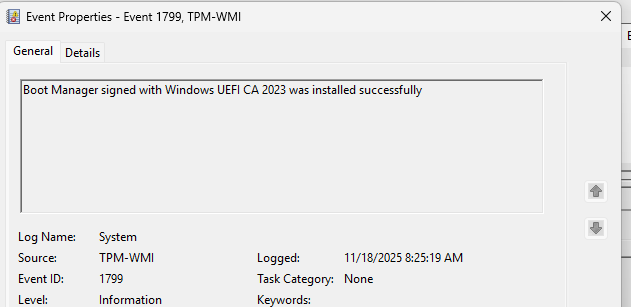
1. Go to Event Log > Windows Logs > System > Filter to find event ID 1799
2. Open CMD as "Administrator"
mount the EFI partitions. (mountvol s: /S)
Copy efi file to C:\ drive (copy S:\EFI\Microsoft\Boot\bootmgfw.efi c:\bootmgfw_2023.efi)
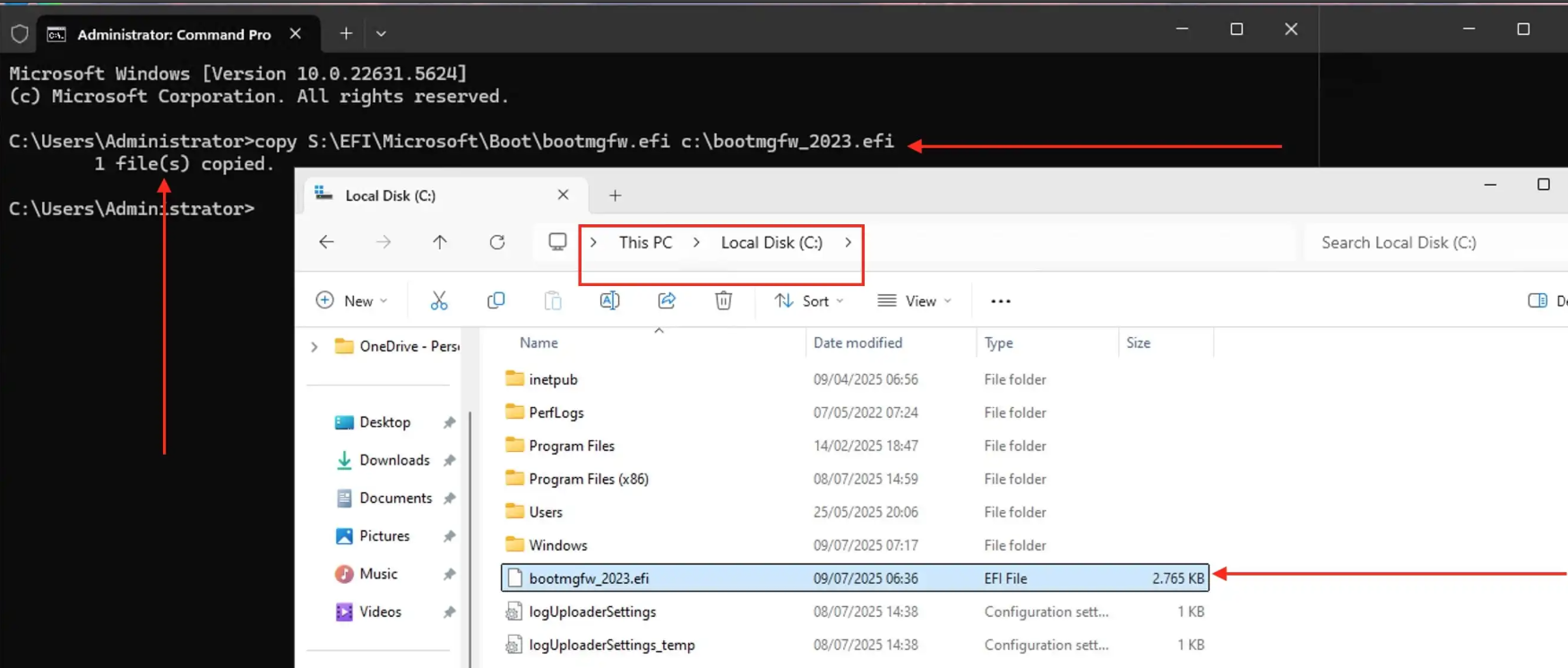
Right click the efi and select Properties > Digital Signatures > Select Microsoft Windows > Details >View Certificate
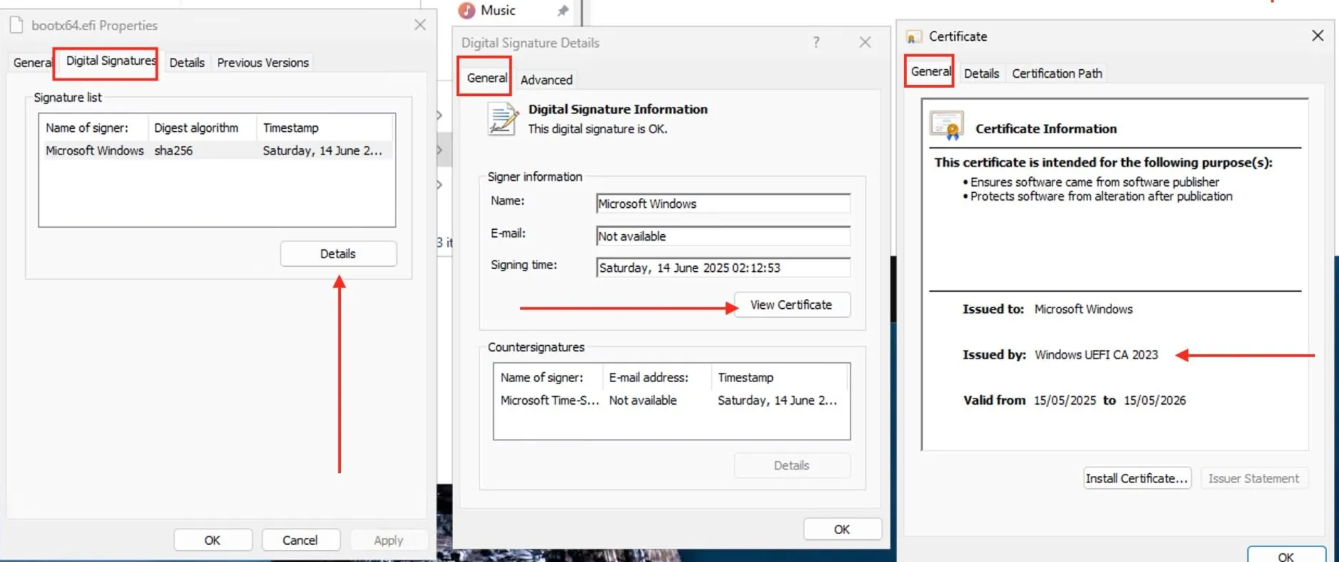
Once you see Boot Manager signed with Windows UEFI CA 2023, update is completed successfully.
Clean up Command
- del bootmgfw_2023.efi
- mountvol s: /d
If you have any questions, feel free to let me know.