
These are instructions on how to update the Visitor management system with an updated list of confirmed CRCs
TABLE OF CONTENTS
- Step 1: Export the list from Google Sheets
- Step 2: Upload the CSV file to the Visitor Management System
- Notes:
Step 1: Export the list from Google Sheets
- Open the CRC Volunteer/Vendor Tracking Sheet and navigate to the Export tab
- From the Google Sheets Menu bar, navigate to File > Download > Comma Separated Values (.csv)
- This step will have downloaded a new CSV file to your computer
Step 2: Upload the CSV file to the Visitor Management System
- Sign into Sign In App
- Select the Manage option at the top of the screen
- Select the Groups button
- Select the Visitors with a Criminal Records Check group
- Click Members on the left hand side
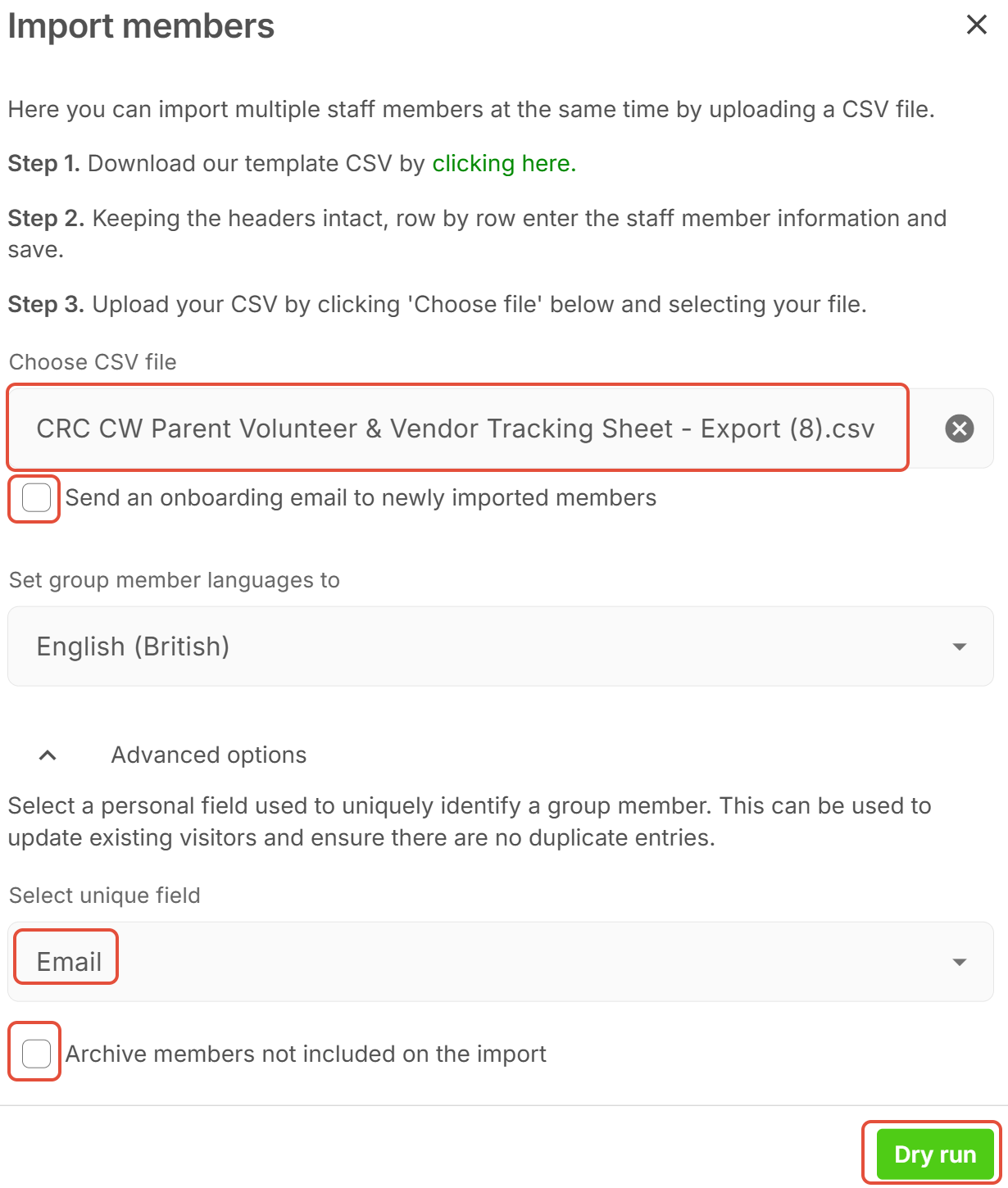
- Click on the Import button located above the list of current users to bring up the import box
- Click on the Choose CSV file field and select the file downloaded from step 1
- Make sure the the Send an onboarding email to newly imported members field is Unchecked
- Set the Select unique field drop down box to Email
- Make sure that the Archive members not included on the import field is Unchecked
- Click Dry Run
- Click Import
Notes:
- For the import into Sign In App to succeed, certain criteria needs to be met:
- Email address needs to be unique and in a valid email format. If there are duplicate entries in either the Parent Volunteers Form Responses 1 or Vendor CRCs tabs on the Google Sheet, the correct information may not be imported into the visitor management system
- Name field can not be left blank
- For the user to appear in the import, a CRC expiration date must be set