
Collingwood's VPN service for faculty and staff can be used for two purposes:
- Accessing network drive data and other services located on site
- Securing your web traffic when using open or untrusted networks
VIDEO CHAPTERS:
TABLE OF CONTENTS
- Step 1: Installation
- Step 2: Connecting to the Collingwood VPN for the first time
- Step 3: Connecting to and disconnecting from the VPN
Step 1: Installation
Your Collingwood issued laptop should already have the GlobalProtect application installed. If it's not installed, please contact IT to have GlobalProtect installed on your computer.
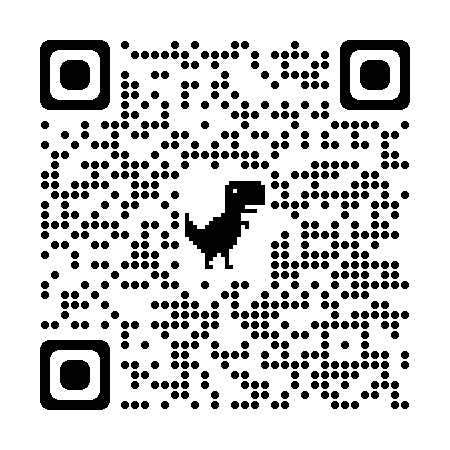
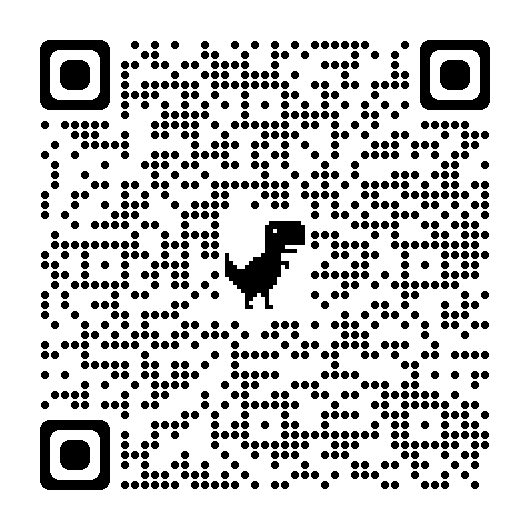
In order to connect to the Collingwood VPN from you iOS or Android device, you will need to install the GlobalProtect app developed by Palo Alto Networks.
| Apple App Store | Google Play Store | |
 |  |
Step 2: Connecting to the Collingwood VPN for the first time
- Open the GlobalProtect application
- Windows Users
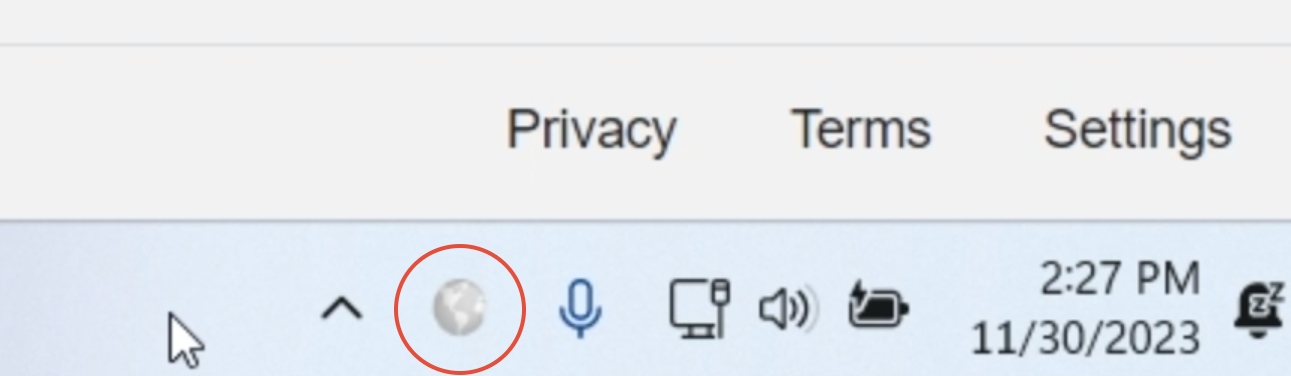
- Click on the GlobalProtect icon in the Windows Task Bar located in the bottom right hand side of your screen
- Windows Users
- MacOS Users
- Click on the GlobalProtect icon in the Apple Menu Bar located at the top right hand side of your screen
- iOS/Android Users
- Select the app from your list of apps

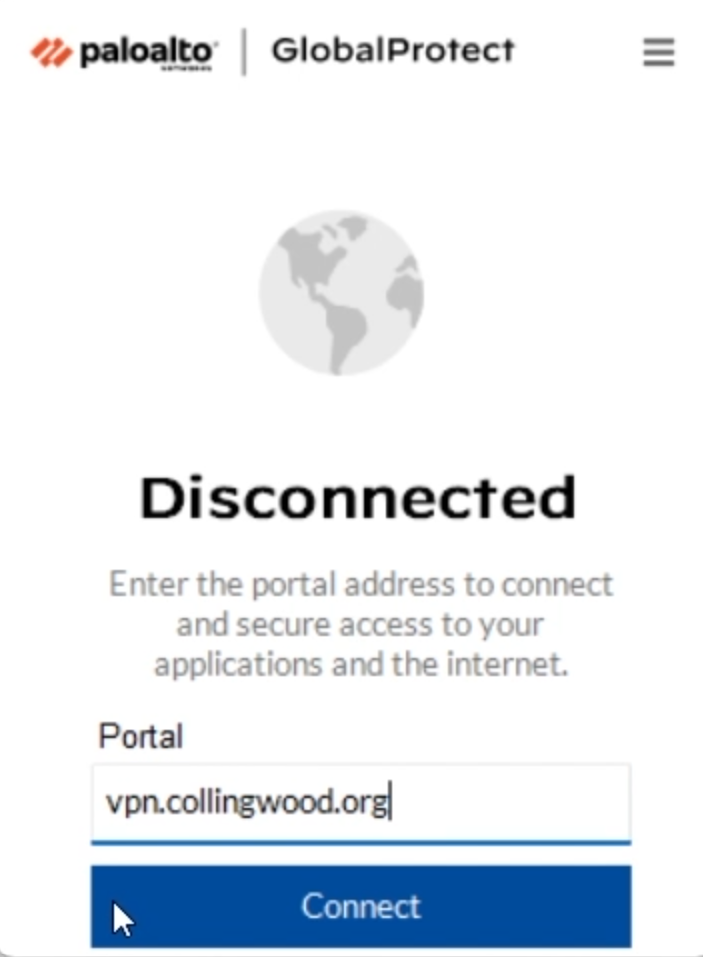
- When signing into the VPN for the first time, you will be asked to enter in your portal address
- Type in vpn.collingwood.org and click Connect
- Sign In the to VPN portal using your Collingwood Email address and password and then select the Sign In or Connect option
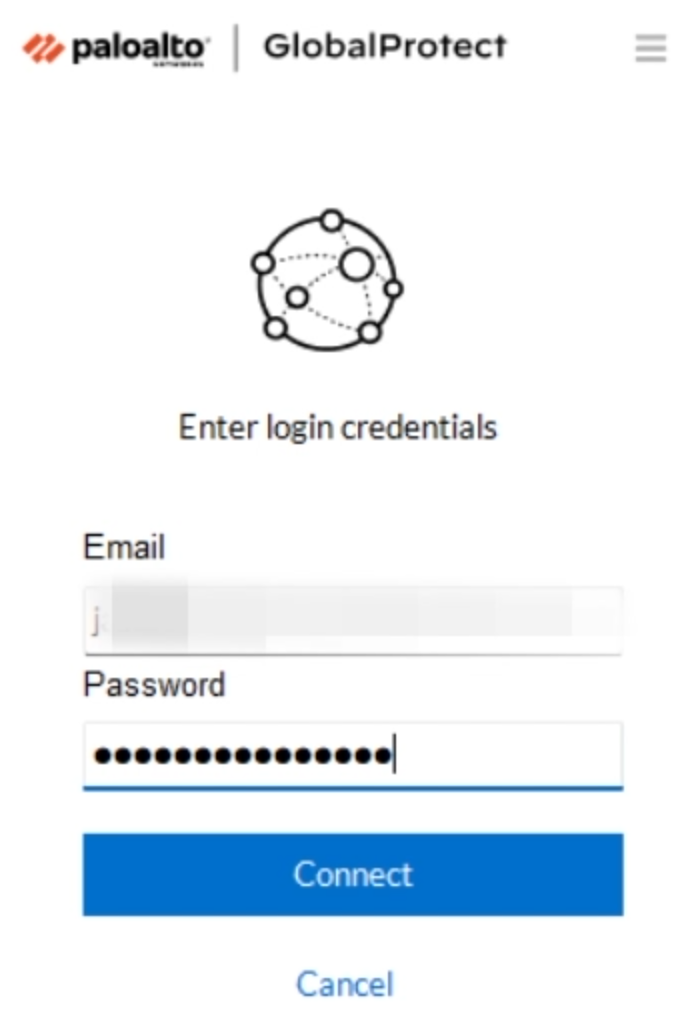
- You will then need to connect to the VPN gateway using your Collingwood SSO and MFA details in the browser window that will appear.
- Once you see the message Authentication Complete, you may need to click Launch GlobalProtect or the click here link

- The globe should then change from grey to colored in to show that you are connected

Step 3: Connecting to and disconnecting from the VPN
- Open the GlobalProtect App
- To connect to the VPN, press the Connect button
- You may be asked to sign in again
- To disconnect from the VPN, press the Disconnect button